What Is SketchUp? What It Does and How to Download It


So, what is SketchUp? In short, SketchUp is a leading modeling program for 2D and 3D drawing. Architects, interior designers, people working in architectural design and game design, and other designers often choose it. It is easy to learn and gives results quickly.
In this article we explain what the program does, which versions it has and how to download it. Then we introduce the screen you see on first launch and the basic tools.
What is SketchUp and what is it for?
With SketchUp you make both 2D and 3D drawings. On top of that, you can easily edit everything you draw later. If you like, you can also export your 3D models to send them to a 3D printer.
The program is useful in many fields. You can do all of the following with the same interface, for example:
- Architectural projects and building models
- Interior designs, furniture and space layouts
- Scene and object designs for video games
- Presentation models to show ideas to clients quickly
The program’s standout features
The main reason users love this program is its simplicity. You also get a lot done with only a few commands. Below we briefly explain the two features you will find most useful.
From 2D to 3D with Push/Pull
You turn a 2D face you drew into a 3D volume with a single move. The Push/Pull command is all you need. In other words, you turn a floor plan into a model with raised walls in a few minutes.
A ready-made model library
The program also has access to a rich model library. Thanks to this archive, you don’t model every object from scratch. That leaves you more time for design. The library is called 3D Warehouse.
SketchUp versions: Free, Make and Pro
“Is SketchUp paid?” is one of the questions we hear most often. The answer actually depends on the version you choose.
- SketchUp Make: It let you use the program for free. But since the Make version no longer gets updates, you work with limited features.
- SketchUp Free: The free version that runs in the browser. It is a good start for getting to know the program with tutorial videos.
- SketchUp Pro: The main version for students and professionals. It covers every feature, including 2D drawing, 3D modeling, import and export.
When we first wrote this article, the Pro version offered a 30-day free trial. For current trial and plan terms, see the official plans page.
When deciding which version to start with, think first about what you will draw. If you only want to learn, the free version will do. For commercial projects, Pro is the better choice.
How to download SketchUp
To download the program, first choose the version that fits your needs. Then get the installer from the official website and install it on your computer. You can find step-by-step instructions in our SketchUp download guide.
After installing, you can take a look at our SketchUp tutorials to get to know the program. The video below is also a good starting point for your first steps.
 YouTube
First steps: how to use SketchUp
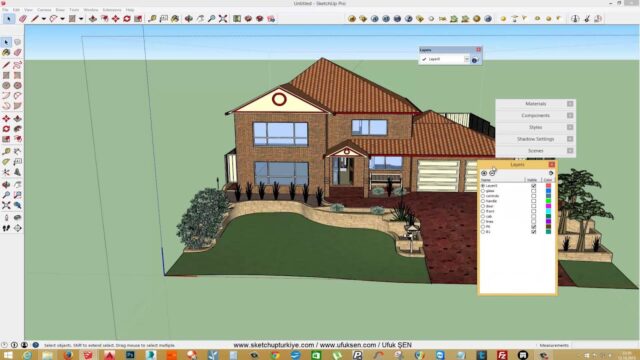
Once installation is done, open the program. On first launch, a figure named Josh greets you. Practice with this model for learning purposes, or delete it and start from scratch. (The video is in Turkish; this guide walks through the key steps in English.)
The toolbar on the left side of the screen gathers the basic drawing tools. The pencil (Line) tool creates lines, for example, and the Rectangle tool draws squares and rectangles. With the Arc tool you draw circles and arcs.
If you don’t want to draw from scratch, import a model from the library. To do this, click the objects button on the toolbar and pick one of the models. That way you fill your scene quickly.
Export options depend on the version. In the free version you only see the PNG and STL formats. In Pro you use every feature without limits and export to many more file formats.
Tips for beginners
In the first weeks, don’t try to learn everything at once. First get used to basic tools like Line, Rectangle and Push/Pull. Then try drawing with exact dimensions. A model built with the right dimensions makes every later step easier.
- Start with a simple table or room model.
- Work tidily by making each object a group or component.
- Learn the keyboard shortcuts so you get faster.
- Archive each finished model for your next project.
Also, while watching tutorial videos, repeat the same steps on your own computer. Drawing along instead of just watching makes the learning stick much better. Finally, note the points where you get stuck and send us your questions in the comments.
If you are working on something similar, our What Is SketchUp Drawing and What Is 3D Architecture articles will save you time. For other lessons, stop by our SketchUp tutorial guide.
Frequently asked questions
Is SketchUp free?
There is a free version that runs in the browser. For professional work, though, you need the Pro version, which offers every feature.
Is the program hard to learn?
No, thanks to its simple interface you learn the basic commands quickly. Then you can improve with tutorial videos.
Which formats does the free version export to?
The free version only includes the PNG and STL formats. For other formats you need the Pro version.
Keep learning SketchUp
- SketchUp Units, Basic Settings and Drawing Logic
- The Model Tree with SketchUp Outliner: Finding and Naming Groups
- Importing AutoCAD Files into SketchUp: DWG Import Prep
- The Easiest Way to Bring 3ds Max Files into SketchUp
- Creating a SketchUp Animation: From Scenes to an MP4 Video
- SketchUp Sections: Cutting Sections and Exporting DWG Without Extensions
- SketchUp 2027 Tutorial Videos: Free and Professional Lessons
- SketchUp Training
- SketchUp Course in Ankara
- One-on-One SketchUp Review
- WHERE Do I Make Content for You? What Do I Do?
- SketchUp Türkiye Event: Download Quality Models for Free!