Selecting and Moving in SketchUp: The Select and Move Tools

The SketchUp select and move tools are the two basic commands you’ll use most in the program. Almost every operation starts with a selection and usually continues with a move. In this lesson we cover the Select and Move tools, their shortcuts and small but lifesaving tips. It is a topic every SketchUp beginner should get down in the first week.
 YouTube
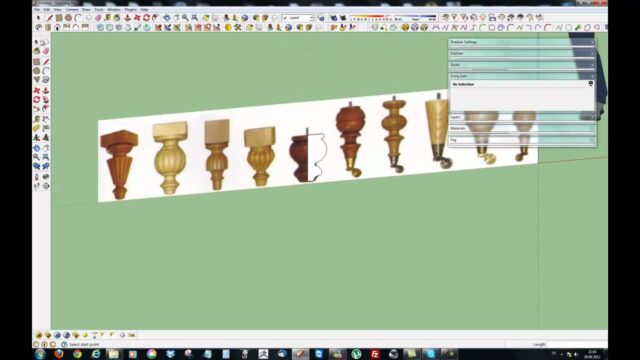
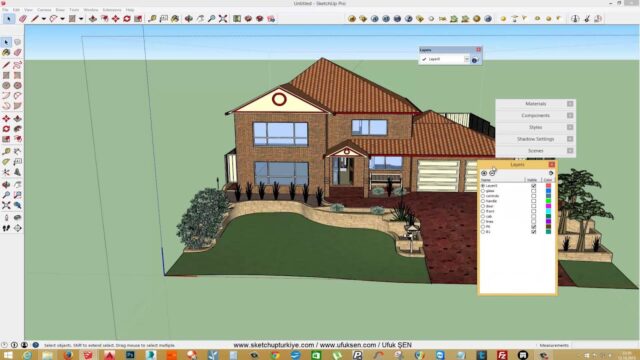
We recorded this lesson in 2015 for our basics tutorial series. The icons look a little different in newer versions. But the shortcuts and the logic of these two tools stay the same. (The video is in Turkish; this guide walks through the key steps in English.)
In this video
- Opening the Select tool with the Space key
- Multiple selection with Ctrl, select all with Ctrl+A
- Removing objects from a selection with Shift
- The difference between left-to-right and right-to-left window selection
- Opening the Move tool with the M key and axis locking
- Making a copy with Move by pressing Ctrl
SketchUp select and move: the Select tool
You can reach the Select tool three ways. You click Select in the Tools menu. You press the black arrow icon at the far left of the Large Tool Set toolbar. Or, the most practical way, you press the Space key on the keyboard. In the video we always use the Space key.
For example, to select an object, a single click on it is enough. The selected object stands out with a blue highlight. That way you see right away which object is selected.
Multiple selection and select all
To select more than one object, we hold down Ctrl and click the objects one by one. Each click adds a new object to the selection. If you want to select every object in the scene at once, use the Ctrl+A shortcut. The same command is also in the Edit menu as Select All.
Removing an object from the selection is easy too. You hold down Shift and click the object you want to remove. For example, in the video we first select everything with Ctrl+A, then drop a few objects from the selection with Shift.
Left to right, or right to left?
Window selection is one of SketchUp’s most overlooked features. When you select by dragging a rectangle with the mouse, the direction matters a lot.
- Left to right: only objects that are completely inside the window get selected.
- Right to left: every object the window touches gets selected.
In the video we select two objects and the ground together with a right-to-left window. Then we select the same area left to right to show the difference. Choosing the right direction in a crowded scene saves you a lot of time. We recommend practicing it plenty.
SketchUp select and move: the Move tool
Our second command is Move. Its shortcut is the M key. First we select the object with Select, then press M. Then we move the object wherever we want.
Another nice thing about the Move tool is that it works with a reference point. In other words, you can grab an object by its own corner and drop it exactly on another object’s corner. You can also move several objects at once with a multiple selection.
Moving with an axis lock
When you move things in a crowded scene, the cursor snaps to objects in the background and drags you in the wrong direction. The fix is the axis lock. At minute 2 of the video, with the Move tool active, we hold down Shift. That locks the movement to a single axis, for example the blue axis.
That way other objects don’t pull the cursor. The object moves only along the axis you chose. This method is very useful when you want to raise an object exactly vertically or slide it in one direction. To exit the command, just press Esc.
Making copies with Move
The Move tool has one more hidden talent: copying. If you press Ctrl once before you start moving, the object stays in place and a copy comes along at the cursor. So you move and duplicate with the same tool.
This feature saves a lot of time with repeated elements like windows, columns or furniture. If you use the copies as components, your file stays light too. For other handy commands, see our SketchUp handy commands post.
Shortcut summary for SketchUp select and move
- Space: Select tool
- Ctrl + click: add to selection
- Shift + click: remove from selection
- Ctrl+A: select all
- M: Move tool
- Ctrl during Move: make a copy
- Esc: exit the command
Once you have these two commands down, you can move on to the other basic tools. To progress in order, watch our SketchUp basics lessons. For cleaner models, our better modeling in 9 points post will also help. The official descriptions of the tools are on the SketchUp Help Center page.
Summary
The SketchUp select and move tools are the foundation of every model. You open the Select tool with Space, add with Ctrl and remove with Shift. In window selection, the direction decides which objects get selected. You open the Move tool with M, lock to an axis with Shift and make copies with Ctrl.
Frequently asked questions
What are the shortcuts for selecting and moving in SketchUp?
Use Space for Select and the M key for Move. Ctrl is for multiple selection, and Shift removes objects from the selection.
Why do left-to-right and right-to-left selections give different results?
In a left-to-right selection, only objects that are completely inside get selected. In a right-to-left selection, every object the window touches gets selected.
How do I make a copy with the Move tool?
With the Move tool active, press Ctrl once before you start moving. The object stays in place and a copy comes along with the cursor.