Soft Edge Plugin: Round Edges in One Click, Keep Your Options Open

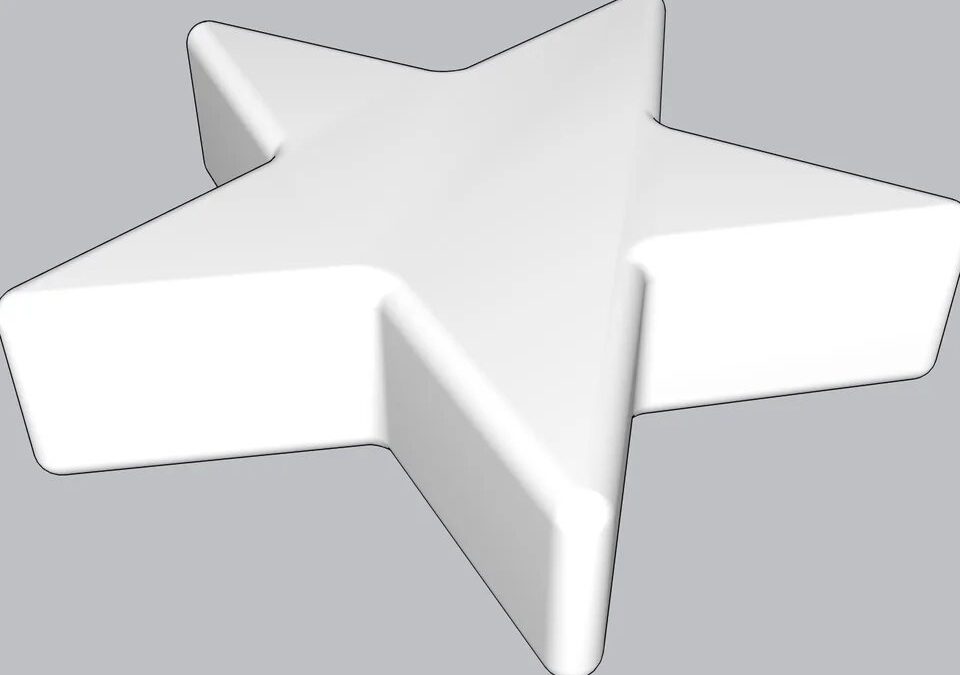
The client leans in toward the render and looks at the edge of the table. Then they ask: “Will these corners really be this knife-sharp?” At that moment, all your work turns into an ordinary computer drawing. Yet the same table would look completely different with a half-millimeter curve. The Soft Edge plugin makes that question go away, because it rounds or chamfers edges in one click. And it never locks in your decision.
The proof is clear too. Soft Edge is a free SketchUp extension, currently at version 0.8.1 beta. It works on a group, a component or selected faces. If you like, you can also select just one, two or three edges inside the group. Every edge gets the same true radius, and the corners close cleanly.
In this article:
- Why do sharp corners cheapen a presentation?
- What does the Soft Edge plugin do?
- How does a twenty-minute job drop to ten seconds?
- Which professions does it help?
- Installation, compatibility and honest limits
- Frequently asked questions
Why do sharp corners cheapen a presentation?
In the real world, perfectly sharp corners hardly exist. Tabletops, doors, countertops and shelves all have a thin curve or chamfer. When light hits that curve, a thin highlight forms along the edge. The eye reads that highlight as “real”. On a sharp corner, that line never appears, so the model looks fake even with good textures.
The problem is that rounding by hand is tedious. First you draw a profile, then you sweep it along the edge. Then you clean up the corner joints one by one. And if you don’t like the radius, you start over. In a furniture set, this eats a whole afternoon.
What does the Soft Edge plugin do?
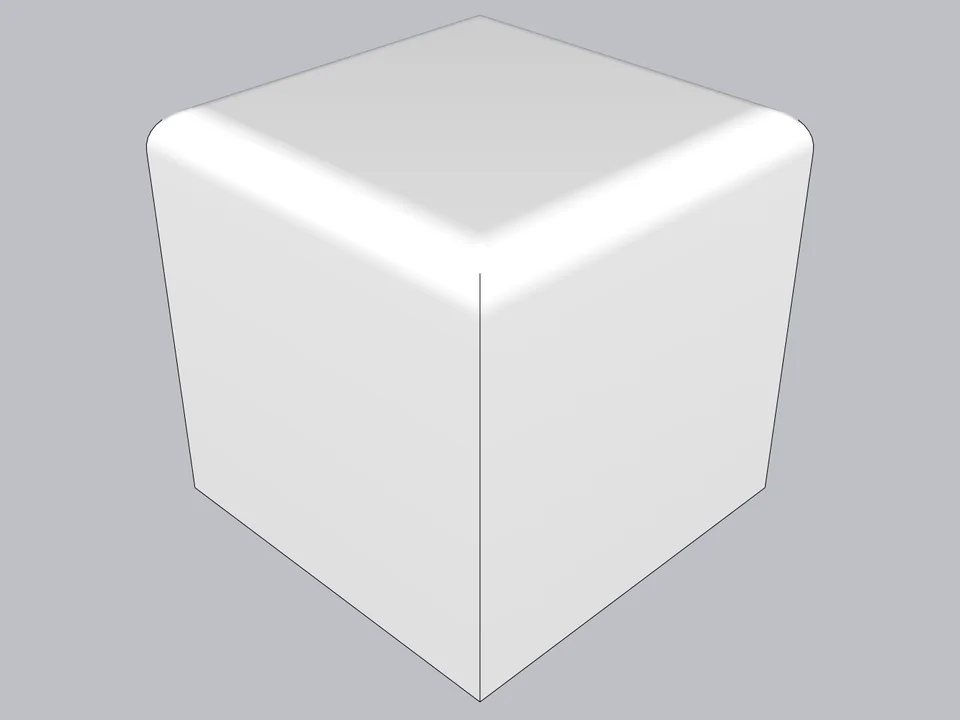
The workflow is just three steps: select, type the radius, click Round. You enter the size in model units, for example 5 mm or 0.2 in. The panel shows the suggested radius and the largest radius the model can take. So you won’t break the model with a value larger than the part’s thickness. And the whole operation comes back with a single Ctrl+Z.
Depending on the selection, corners close in three ways. Where three edges meet, you get a spherical corner. Where two edges meet, you see a clean miter, and on a single edge, a flat cap. Edges you don’t select stay sharp, so you only soften where you want.
Round or chamfer?
The extension offers two profiles. Round gives the edge a curve. Chamfer is a single flat face, and the setback on the two faces is the size you enter. On solid wood or a stone countertop, a chamfer is often closer to real edge work. The extension saves the profile you choose with the object and keeps it when you rebuild. There are also three quality options: Fast, Balanced and Smooth.
Why is your decision never locked in?
For us, this is the most valuable part. The extension stores the original solid in the group’s attributes and saves it with the model. So you can change the radius or quality and rebuild. An edge you add later gets its own radius. You can also make a softened strip sharp again. The “Restore original” command rebuilds the original faces. In short, revisions are no longer a nightmare, and no experiment breaks the model.
Clean results on tricky geometry too
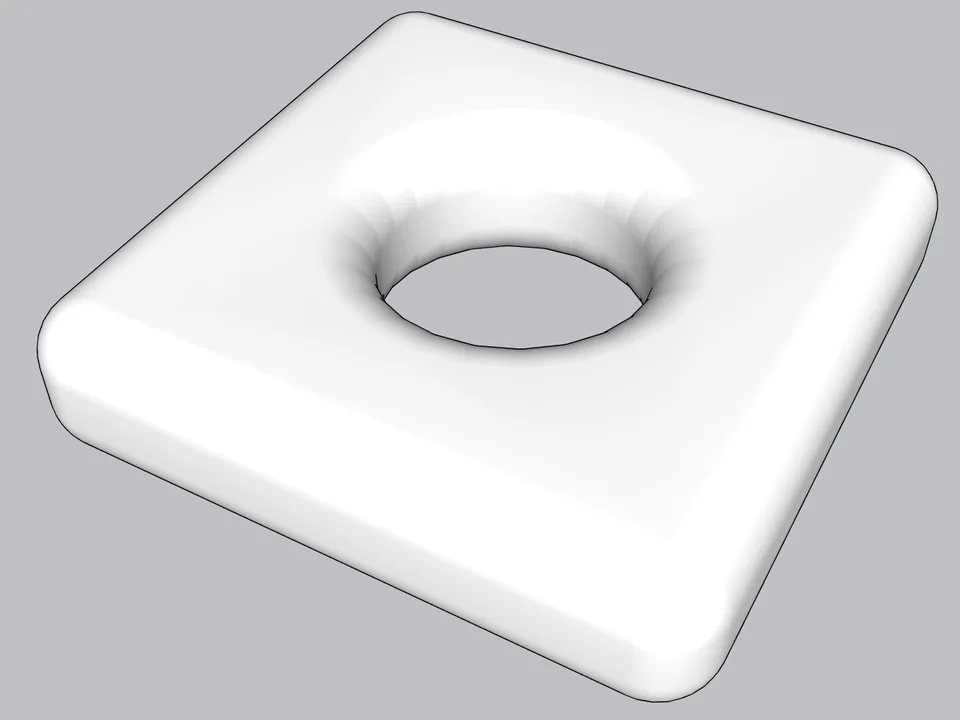
Concave solids, inside corners and sharp star points get the same radius too. Faces with holes, round holes and open shells cause no problems either. In nested groups, the extension softens each part separately and accounts for scale on a scaled part. On a component, it runs Make Unique first, so the other copies stay as they are.
Materials sit on the curve without stretching
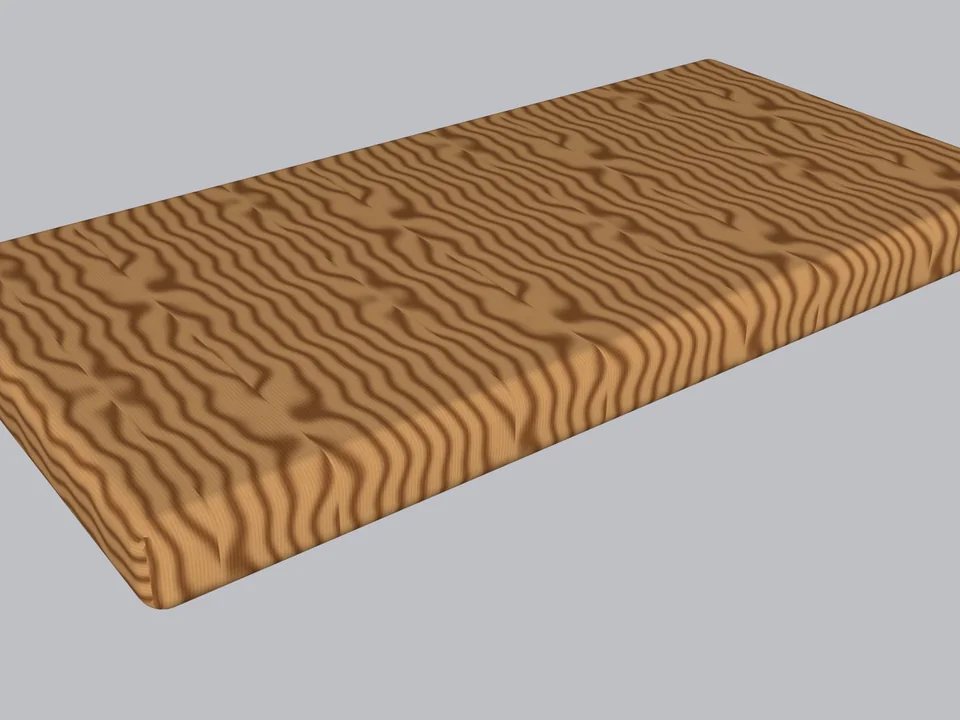
There are three texture modes. In Fixed mode, each face keeps its own placement. In Wrap mode, the texture flows from the largest face over every softened edge. For example, on a wooden tabletop, the grain continues over the edge like a veneer. Box mode projects the texture from three axes. Faces with no material also take the material of the nearest textured face.
How does a twenty-minute job drop to ten seconds?
In the example on the store page, rounding a tabletop edge by hand takes about 20 minutes. The same job takes about 10 seconds with the Soft Edge plugin. You just select, type the radius and click. For a single tabletop, the difference looks small. But in a kitchen or an office set, the number of edges multiplies fast.
Let’s look at the calculator’s default values. You have 8 projects a month, with 1 hour of edge work per project. The saving rate is 70 percent. The math comes to 8 × 1 × 0.7 ≈ 5.6 hours. So close to six hours every month go to design or a new client instead of cleaning up edges. That is exactly what turning hours of work into minutes means.
Which professions does it help?
Furniture designers and workshops come first. Tabletop, door and shelf edges look like they do in real production. If you also want to get the workshop list from the model, our cut list for furniture workshops post is a good next step.
Interior architects see the difference right away in countertop, niche and bench details. Product designers love this tool for small bodies and housings. For visualization specialists, the edge highlight matters in close-up renders. If you work with organic forms, the tabletops in our organic table modeling lesson also look more convincing with soft edges.
They all have one thing in common. When a client looks at a model, they want to see care. So we suggest you use the same radius on similar parts in the same project. Consistent edges make the model look like a product family. As your business grows, fewer errors and consistent details build trust, not longer working hours.
Installing the Soft Edge plugin: step by step
- Download the .rbz file for free from the product page.
- In SketchUp, go to Extensions > Extension Manager > Install Extension.
- Open the panel from the extension’s own toolbar button.
- Select the solid or the edges, then enter the radius and profile.
- Click the Round button. If needed, change the setting and rebuild.
For quick work, the Fast, Balanced and Smooth options are also in the right-click menu. The panel tracks your selection live and offers a short guide in two languages. You can find installation details in our installing SketchUp plugins post.
Which SketchUp versions does it work in?
The developer wrote the extension for SketchUp 2021–2026, and the code covers both Ruby 2.7 and Ruby 3.2 environments. It has also been run for real in SketchUp 2023, 2024, 2025 and 2026. SketchUp 2021 and 2022 use the same Ruby 2.7 code path. Because it is in beta, manual testing is still under way. The interface is in Turkish and English, with no license key, account or online check.
What doesn’t the Soft Edge plugin do yet?
The extension needs a closed solid or its edges. If the selection doesn’t form a solid, the panel tells you. The texture is placed on the front face only, and the back face stays at SketchUp’s default. It also won’t rebuild an object you edited by hand after softening, so the saved original solid isn’t overwritten by accident. For a step-by-step walkthrough of the method, take a look at our rounding and chamfering guide.
Frequently asked questions about the Soft Edge plugin
Do all copies of a component change at once?
No. The extension runs Make Unique on the component first, so only the copy you select is softened and the others stay the same.
Does the Soft Edge plugin need the internet?
No. You install the file once, and after that the extension works offline.
Can I switch from chamfer to round later?
Yes. The extension saves the profile with the object, so you just change the choice and rebuild.
How do soft edges look in a render?
A thin line of light forms along the edge. You can see it in real light inside SketchUp with our free render engine Render Fun.
In your next presentation, let the client look at your design, not the corners. Download Soft Edge for free from the product page and soften your first tabletop in ten seconds.