Using Quality Materials with V-Ray VRMAT in SketchUp

SketchUp V-Ray ready-to-use quality textures
Download Link : bestsketchupplugins.com/tr/textures On our channel, you’ll find 3D tutorials and videos on render engines widely used in 3D visualization, such as SketchUp, 3ds Max, Blender, V-Ray, Corona Render, Lumion, Twinmotion, Enscape and Unreal Engine.
We make these 3D tutorials completely free for you, with a lot of effort. All we ask is that you subscribe to our channel and like and comment on the videos to support us.
 YouTube
What’s in this video?
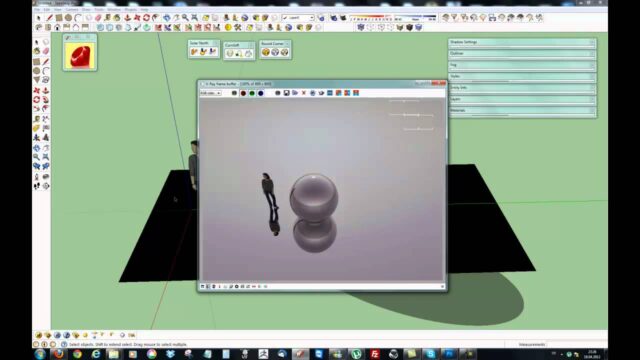
In this short video, we show the ready-to-use, high-quality materials we made for SketchUp V-Ray. VRMAT in the title means a V-Ray material file. So instead of setting up textures from scratch, you add a finished material straight to your scene. (The video is in Turkish; this guide walks through the key steps in English.)
The download link for the materials is at the top of this post. The video description has no chapter timestamps, but the video is short anyway. So we suggest you watch it once and then try the materials in your own scene.
Who is it for?
The video runs about 3 minutes. It is a short introduction, but ready-made materials can seriously cut the time you spend preparing them.
- Users who render with SketchUp V-Ray and look for quality materials
- Interior architects tired of preparing materials from scratch in every project
- Architects and designers with a deadline coming up
- Students who want to learn material logic from ready-made examples
Why do ready-made materials save time in SketchUp V-Ray?
A good material isn’t just a color image. The roughness, reflection and bump of the surface also shape the result. Setting these up from scratch every time takes a long time.
A ready-made VRMAT file carries these settings inside it. So when you add the material to the scene, the surface comes in exactly as it was prepared. You can spend your time on light, camera and composition instead.
A quality library also helps you keep the same visual quality across different projects. For example, when several people in an office use the same materials, the presentations share a consistent look.
Before you watch
However good a material is, it has to sit correctly on the model. So we suggest you pay attention to the texture direction and scale on your faces. For example, with patterned materials like parquet or stone, the wrong scale makes the image look fake right away.
Light matters as much as materials. The same material looks completely different under different light. For general information on placing textures on faces in SketchUp, check the SketchUp Help Center.
When you use a ready-made material
- First, try the material in a simple test scene with plain lighting.
- Then apply it to the face in your project and check the texture scale.
- If needed, adjust the color and glossiness a little for your project.
- Finally, save the version you like to your own library under a separate name.
Over time, this small habit lets you build a material library of your own. So in every new project, you start with ready, pre-tested materials, not from scratch.
Signs of a quality texture
To tell whether a texture is good, a close look is enough. A high-resolution texture doesn’t blur even in a close-up. A good texture also doesn’t show seams when it repeats, so the surface looks continuous.
Bump and reflection data matter too. For example, light scattering slightly across a wood floor is the detail that makes the material real.
Keeping your library organized
As the number of materials grows, finding what you need gets harder. So we suggest you sort materials into groups like wood, stone, metal and fabric. Giving each file a clear name also lets you find the right material in seconds, even months later.
Then there are previews. Keeping a small test image next to each material makes it easy to see what it looks like without opening the file.
Related lessons
- Using ready-made materials (01): the first lesson in the materials series.
- Create your own material from scratch (02): building a material yourself.
- How materials work physically (04): the logic behind the settings.
- Free texture site: other texture sources.
- Our render guide: all our render content on one page.
Frequently asked questions
What is a VRMAT file?
VRMAT is V-Ray’s material file. Along with the texture images, it carries settings like reflection and bump, so you can move a material to other projects as a single file.
Can I change the ready-made materials?
Yes. After you add a material to your scene, you can edit its color, glossiness and scale for your own project.
Do these materials work outside SketchUp V-Ray?
VRMAT is a format made for V-Ray. You can still use the texture images in other render engines with your own material settings.