Marvelous Designer Tutorial


We made our Marvelous Designer tutorial series for fabric objects that are hard to model in SketchUp. Making complex surfaces like duvets, pillows and curtains look natural in SketchUp isn’t easy. We usually try to solve this with a few extensions. But exporting the model and working in Marvelous Designer gives a far more realistic result.
Marvelous Designer tutorial playlist
All the videos in the series are in the playlist below. We recommend starting with the first video and going in order.
What is Marvelous Designer?
Marvelous Designer is a program built for clothing design and cloth simulation. It calculates how fabric drapes, folds and wrinkles in a way that is close to real physics. That’s why it is a common tool in games, film and animation. You can follow the current version on the official Marvelous Designer website. (The video is in Turkish; this guide walks through the key steps in English.)
In architectural visualization, the program serves a very different purpose. You create objects like bedspreads, curtains, tablecloths and cushions with natural wrinkles. You can also make fashion designs, such as women’s and men’s clothing, in the same program.
Why should SketchUp users take a Marvelous Designer tutorial?
SketchUp is a great program for flat, crisp surfaces. But modeling soft, irregular surfaces like fabric by hand is very hard. A pillow you draw by hand usually looks too neat and artificial. A real pillow always has small dents and creases.
Marvelous Designer produces this natural look on its own through simulation. You don’t draw the wrinkles one by one. You watch the fabric take shape under gravity. As a result, your interior images instantly feel warmer and more natural.
The general workflow between SketchUp and Marvelous Designer
When we use the two programs together, we usually follow this order. It is a general method you can easily apply in your own projects.
- Prepare the model in SketchUp: Draw the objects the fabric will rest on, such as a bed, sofa or window.
- Export: Move these objects into Marvelous Designer using a common 3D file format.
- Simulate the fabric: Shape the cover, curtain or pillow on the object.
- Bring it back: Add the finished fabric object to your model in a format SketchUp can read.
You can check which file formats SketchUp imports and exports in the SketchUp Help Center. That way you won’t get any surprises during the transfer.
Fabric objects and file size
Simulated fabrics are made of many small faces. That makes your SketchUp file grow quickly. So keep fabric objects as simple as possible. For example, a curtain far from the camera doesn’t need a very dense mesh.
Also, if you’ll use the same pillow more than once, make it a component. That keeps the model light and SketchUp running smoothly. We covered other ways to lighten the model in our article on reducing SketchUp file size.
What to do after the Marvelous Designer tutorial?
Once you finish the series, don’t jump straight into a big project. Practice with a simple object first. Laying a cloth over a table, for example, is a good first exercise. Then move on to more complex objects like pillows and curtains. Watch carefully how the fabric drapes in each attempt.
Also take a look at our Marvelous Designer course article, where we cover the program’s lessons in more detail. There we also explain the logic of patterns and seams.
What objects can you make with a Marvelous Designer tutorial?
The program helps with almost any object that involves fabric. These are the examples we use most often in interior images.
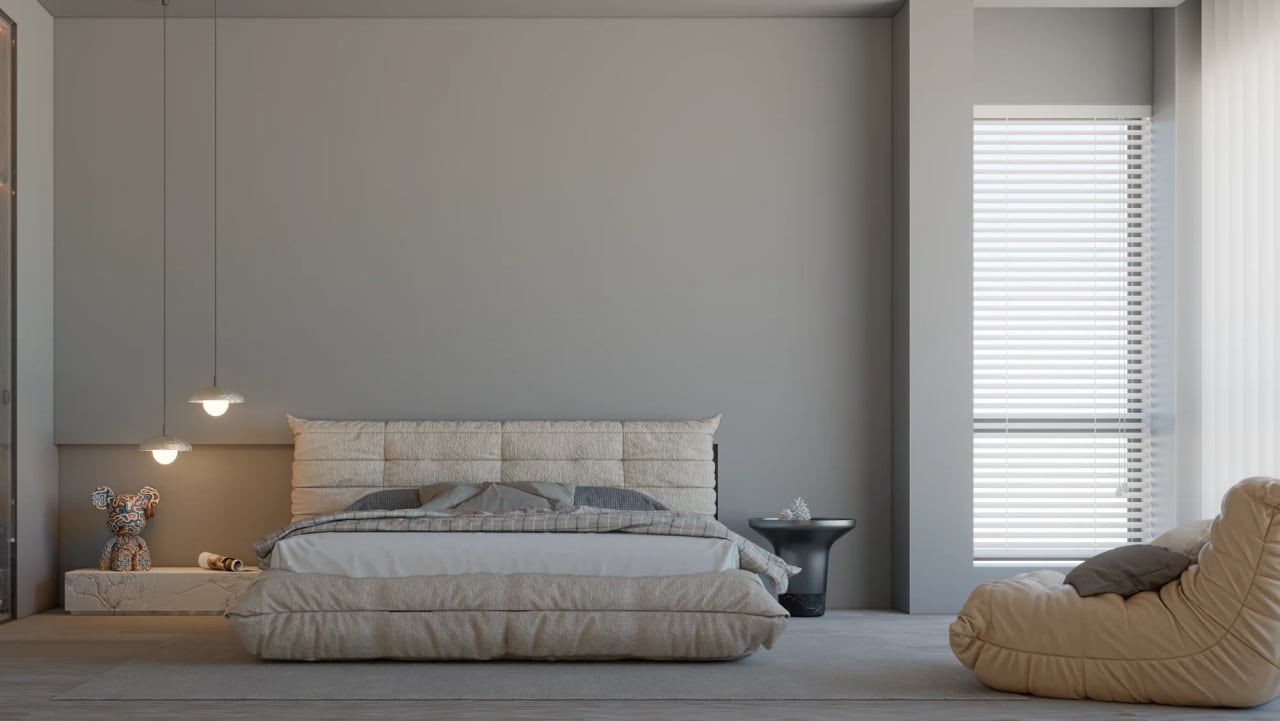
- Bedding: Duvets, duvet covers and sheets rest naturally on the bed.
- Pillows and cushions: Pillows on a sofa look far more realistic with slight dents.
- Curtains: Pleated or loosely falling curtains give a window an elegant feel.
- Tablecloths: Fabric hanging over the edges brings warmth to a dining table scene.
- Clothing: A jacket on a hanger or a cardigan on a chair brings a space to life.
These may all seem like small details, but they set the overall mood of the image. The difference stands out immediately, especially in bedroom and living room scenes. In short, the time you spend on fabric shows directly in the quality of the image.
Also collect the fabric objects you make in a small library. For example, prepare and keep pillows in different shapes, a few curtains and two or three covers. Then you can reuse the same objects in later projects and save a lot of time.
Frequently asked questions
Do I need clothing design experience for a Marvelous Designer tutorial?
No, basic 3D knowledge is enough. If you start with simple objects like covers and pillows, you’ll grasp the program quickly.
Is Marvelous Designer a SketchUp extension?
No, it’s a separate program. You move objects between the two programs by exporting and importing files.
Do fabric objects slow SketchUp down?
Very dense meshes make the model heavy. Keeping the fabric simple and making repeated objects components solves the problem.