SketchUp Rendering Methods: Extensions, Real-Time, Separate Programs and Render Fun


Choosing the right render route shows how much you value your time and effort as a designer; the wrong choice turns presentation night into a file-export ordeal. SketchUp rendering methods basically fall into four routes: render extensions inside SketchUp, real-time extensions, separate visualization programs, and cloud or AI-based services. In this article, we explain how each route works, who it suits and where Render Fun stands in this picture, without knocking anyone.
In this article:
- Why do SketchUp rendering methods differ?
- 1. Render extensions that run inside SketchUp
- 2. Real-time render extensions
- 3. Separate visualization programs
- 4. Cloud and AI-based rendering
- Where does Render Fun stand?
- Which route should you choose?
Why do SketchUp rendering methods differ?
Each render route answers three questions differently. First, where does your model stay: inside SketchUp or in another program? Second, how is the image calculated: with ray tracing or with real-time graphics? Third, what are the terms of use: a license, a subscription or free? The right choice is the answer to these three questions that best fits your workflow. We also touched on this topic in our SketchUp render engines article.
1. Render extensions that run inside SketchUp
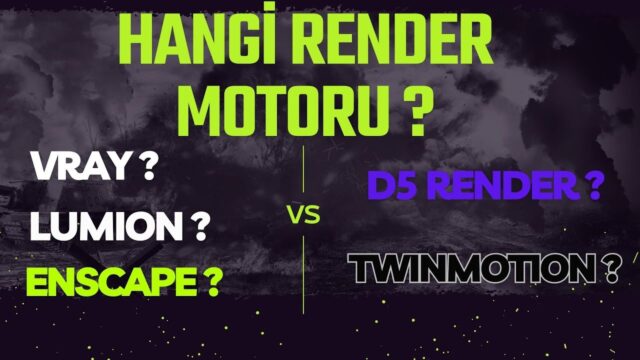
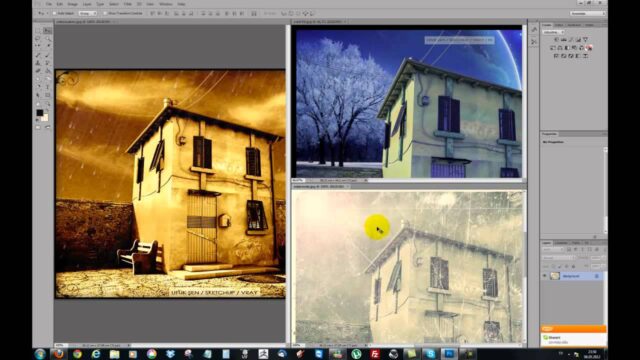
On this route, the render engine is installed inside SketchUp. V-Ray is the best-known example of this group. The model is not exported; materials, cameras and lights are read directly from the SketchUp scene. Ray tracing engines usually offer high realism and a wide range of settings.
Who it suits: professionals who like working with detailed settings and produce photorealistic still images. What to watch for: the depth of settings can make the learning curve longer. To see the logic behind the settings, take a look at our exterior facade render settings article.
2. Real-time render extensions
Real-time extensions draw the image instantly with a graphics approach similar to game engines. Enscape is one of the best-known examples of this group. You can walk around inside the model and see changes right away. That makes it very practical during design and for live presentations in client meetings.
Who it suits: architects and interior designers who want to discuss the design with the client while changing it on the spot. For details on Enscape, see our visualization with Enscape article.
3. Separate visualization programs
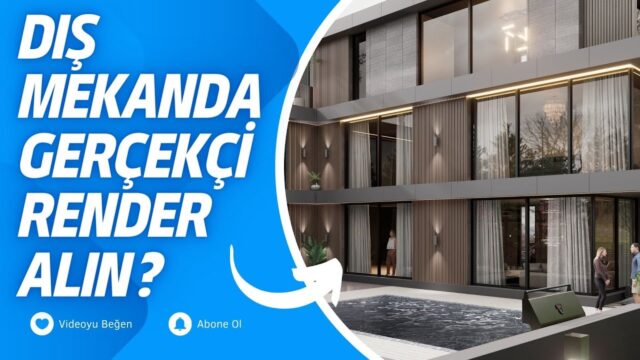
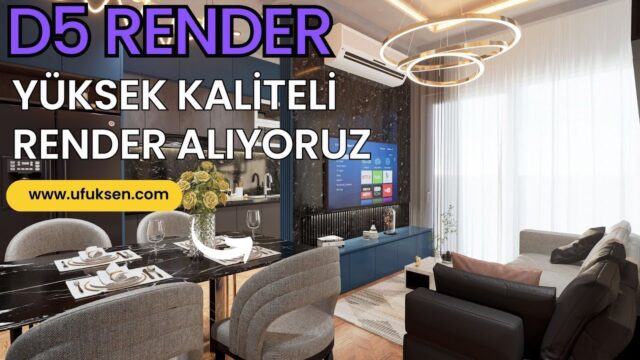
Programs such as Lumion, Twinmotion and D5 Render run outside SketchUp. The model is exported to these programs or synced through a live link. They usually offer rich libraries of plants, people and vehicles, and strong tools for animation and large landscape scenes.
Who it suits: teams that do large-scale exterior, landscape and animation work. What to watch for: working between two programs requires care with file transfer. We gathered tips on this in our transferring files from SketchUp to Lumion article.

4. Cloud and AI-based rendering
On this route, which has spread in recent years, a SketchUp image or the model is uploaded to a service, and a render or an AI-reinterpreted image comes back. It offers speed and convenience. But the result may not always stay true to your model, and most services work on subscriptions or credits. Uploading your model to an outside service is also a privacy issue to consider on some projects.
Where does Render Fun stand?
Render Fun belongs to the first route: GPU-based path tracing, inside SketchUp. But with two differences. First, it is free; there is no account and no license key. Second, it also carries a feature of the second route: with the “Real-time” button, you move through the model with W A S D in a fast real-time mode, and at the angle where you stop, RENDER gives you the ray-traced image.
- No file export: the camera, sun, materials and tags update live.
- Simple interface: pick the weather, pick the quality, press RENDER.
- Offline: HDRIs, textures and the denoiser are inside the extension; the model is never uploaded anywhere.
- Presentation tools: 360° panorama tours, animation and Before / After videos.
- Turkish and English: every word of the interface is in Turkish and English.
Let’s be clear about its limits too. Render Fun currently runs on Windows; macOS has not been tested yet. It is for SketchUp 2021–2026. The graphics card needs WebGL2 support, and so far we have only measured performance on an NVIDIA RTX 4090; there are no measurements on integrated graphics yet.
Which route should you choose?
- If you want to start without a budget and without leaving SketchUp: Render Fun.
- If you produce still images with very detailed settings: ray tracing extensions inside SketchUp.
- If you hold live design meetings with clients: real-time extensions or Render Fun’s fast real-time mode.
- For large landscape and animation work: separate visualization programs.
Ask yourself before you decide
- How often do I render: every day, or at the end of a project?
- Do I present still images, a live walkthrough or a video to the client?
- Does exporting my model to another program fit my workflow?
- Which method can my graphics card handle comfortably?
- Does it matter to me that my model never leaves my computer?
The answers to these questions will point you to the SketchUp rendering method that suits you best. For example, for an interior designer who produces images quickly every day, a route that never leaves SketchUp saves time. A team preparing a large landscape animation benefits from the libraries of a separate program.
Many offices use more than one route together. That is not a weakness; it is choosing the right tool for each job. Since trying Render Fun costs nothing, testing it with your own model before you decide is the soundest approach.
Download Render Fun for free from renderfun.com; you can see the test results on the benchmark page.
Summary
In short, there is no single right answer among SketchUp rendering methods; there is the route that fits your work. Among these routes, Render Fun stands as a free option, available in Turkish, that never makes you leave SketchUp; so it is easy to test with your own model before you decide.
Frequently asked questions
Which SketchUp rendering method is the fastest?
For an instant image, real-time methods are the fastest. Ray tracing takes more calculation but carries light more realistically. Render Fun offers both modes.
Is there a free SketchUp render option?
Yes. Render Fun is free and can be used for both personal and commercial work.
Do I need to export my model to another program?
Not with extensions inside SketchUp or with Render Fun. With separate visualization programs, the model is exported or synced.
Can I use more than one render route together?
Yes. Many offices use a fast route during design and a different route for the final presentation.
Can Render Fun produce 360° panoramas?
Yes. You get a 360° panorama in one click, and several panoramas can be combined into an HTML tour.
Does render quality drop in real-time mode?
Real-time mode is for walking around; when you press RENDER at the angle where you stop, you get a ray-traced image.