Twinmotion Tutorial Set


Our Twinmotion tutorial set gives you a quick introduction to Twinmotion through free lessons. Unlike many other render engines, Twinmotion comes with conveniences that get you into visualization fast. Its interface is simple and clean, so you get results without much effort. In this post we cover what the series includes and the program’s highlights.

The lessons were prepared and sent to us by Kamil Öksüz. Many thanks to him for his contribution.
Twinmotion course set video list
You can reach all the lessons from the playlist below. We recommend watching the videos in order, because each lesson uses what you learned in the previous one. If you keep your own model open while watching, you can try the steps right away.
Why is Twinmotion so easy?
Twinmotion is a visualization program that works on game engine logic. It opens SketchUp files quickly and lets you walk around inside the space like in a game. So you can make edits while you explore the model. (The video is in Turkish; this guide walks through the key steps in English.)
Ready-made plant, people and vehicle libraries also bring the scene to life quickly. You change materials by drag and drop. Thanks to this, even someone new to visualization gets impressive results in a short time.
When we first wrote this post, Twinmotion was not developing as fast as its rival Lumion. Still, we saw it as one of the most promising programs around. Today the program keeps developing under Epic Games. For up-to-date information, see Twinmotion’s official website.
What’s in the Twinmotion course set?
The series starts with the topics someone opening the program for the first time needs. Each lesson builds on the previous one.
- Intro lesson: We take the first step into Twinmotion and get to know the interface and the key tools.
- File import and materials: We bring the model into Twinmotion and edit the materials.
- Creating terrain: We see how to create and edit terrain inside Twinmotion.
- People and vehicle animation: We bring the scene to life with ready-made characters and vehicles.
Once you complete these lessons, you can prepare a simple scene from start to finish yourself. That gives you a solid foundation for more advanced topics.
Watch the file import lesson especially carefully. A small mistake during import affects all the steps that follow. For example, if you did not separate the materials properly in SketchUp, you will struggle to change them one by one in Twinmotion. The tools you learn in the terrain lesson will also save you a lot of time on landscape-heavy projects.
Before you start the Twinmotion course set
Twinmotion is a real-time program, so it needs a strong graphics card. Make sure your computer meets the program’s system requirements. For choosing hardware, our render computer post will guide you.
Also organize your model in SketchUp before importing it. Save materials with meaningful names and delete unnecessary geometry. That way, when you change materials in Twinmotion, you easily understand which surface is which.
What to watch after this series?
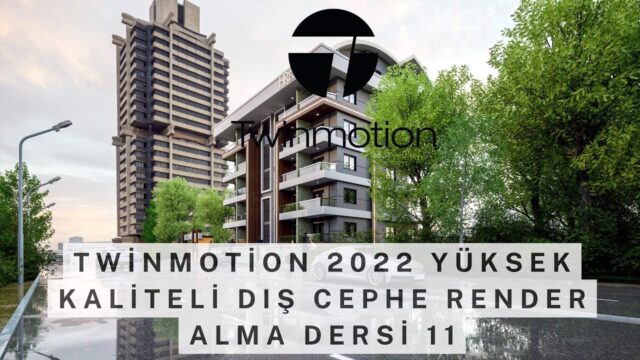
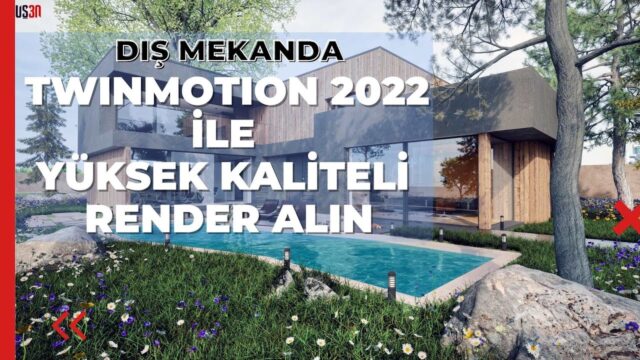
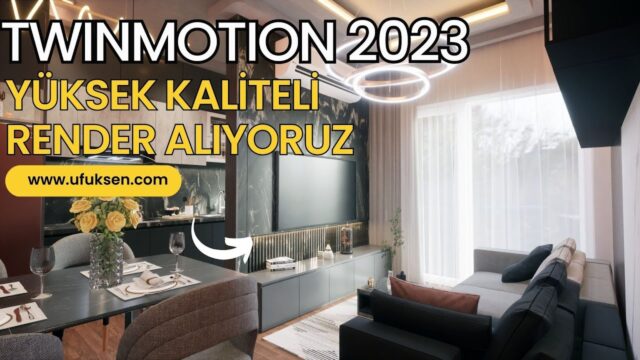
After finishing the basic lessons, you can move on to newer versions. For example, in our realistic rendering with Twinmotion 2022 post we covered light and material settings. For a longer beginner series, also take a look at our Twinmotion basics series.
In short, this series is a short, effective start for getting to know Twinmotion. And all the lessons are free, so all you need is a little time and curiosity. The more you try what you learn in your own projects, the more familiar the program will feel. You can send us your questions in the comments.
Your first project after the Twinmotion course set
After finishing the lessons, start with a small project. For example, a single-story house with a garden is a good exercise. A cafe interior works just as well. First import the model, then change the materials one by one. Then edit the terrain and place the plants.
In the final stage, bring the scene to life by adding people and vehicles. Save a few different camera angles and pick the most effective ones. Also try the same scene at different times of day and in different weather. That way you see Twinmotion’s fast presentation power in your own project. In short, the more you practice, the more natural the program will feel.
Frequently asked questions
Is the Twinmotion course set free?
Yes, all the lessons in the series are free on our YouTube channel. You can reach all of them from the playlist above. Do not forget to subscribe to the channel for new lessons. You can watch the lessons comfortably on a computer or a phone.
Does Twinmotion open SketchUp files?
Yes, Twinmotion imports SketchUp models directly. Then you can move freely inside the space.
Twinmotion or Lumion?
Both are fast, easy-to-use programs. Before deciding, we recommend trying both programs on your own project.