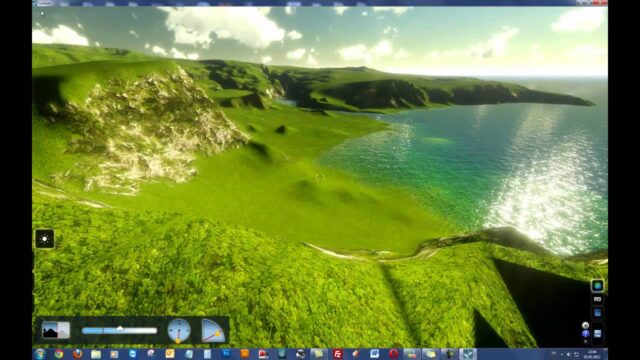
Lumion Landscape Project: Placement Tips for Large Projects

As a Lumion landscape project grows, the program gets heavier and moving around the scene gets harder. In this long lesson we show step by step how to work comfortably on a large site. There are many tips, from quality settings to mass tree placement, and from terrain painting to materials. We made it for landscape architects and anyone building large exterior scenes.
 YouTube
We recorded this lesson in 2021. Lumion’s menu names and icons have changed in newer versions. Still, the workflow we explain is valid today. (The video is in Turkish; this guide walks through the key steps in English.)
In this video:
- Switching the interface to Turkish and running the performance test
- Working smoothly by lowering the editor quality
- Moving the terrain model to the origin
- Placing trees along a line and on a curved path
- Replacing boxes from SketchUp with trees
- Terrain painting, grass, water and ocean tools
- Material settings suited to landscapes
Preparing for a Lumion landscape project
First we click the flag in the settings section and switch the interface to Turkish. Then we run the performance test. Lumion runs on the graphics card, and on a weak card it starts to stutter. The start screen has ready-made scenes such as a grassy daytime scene, sunset, night and mountainous terrain. Opening the sample projects and studying their light settings is also good practice.
Lowering the editor quality for a Lumion landscape project
On a large site, the editor quality causes the most trouble. So in the settings we lower the terrain quality and the overall quality. We also turn off showing distant trees. This reduces the load the computer processes on every frame. In short, we use low quality while working and high quality when rendering.
When you zoom out, you notice that the trees turn into flat, two-dimensional images. This is not a bug. The program deliberately simplifies distant models to protect performance.
Putting the terrain model in place
Because the terrain model is large, importing it takes a while. Once the model is in, we select it and switch to move mode. Here we reset the coordinates to bring the model to the origin. That way we can easily align the next models to the same point. Move mode also has scale and rotate tools.
To move around the scene, the right mouse button and the W, A, S, D keys are enough. If you hold Shift as well, you cover long distances very quickly.
Mass tree placement for a Lumion landscape project
Placing trees one by one takes hours on a large site. Instead, there are a few practical ways. For example, if you hold Alt and drag a tree, you make a copy of it. You can also select several trees with Ctrl and delete them all together. That makes cleanup fast too.
Placing along a line and on a curved path
With the mass placement option, you draw a line between two points. The program then places the trees in a row along this line. With the Ctrl key you can add intermediate points to the line and make the path curved. Then we raise the smoothness value to even out the curve. By randomizing the number of items, the direction and the spacing, we get a more natural row.
Placing trees on boxes from SketchUp
The tip at minute 19 of the video saves a lot of time. In SketchUp we put small box components where the trees should go. In Lumion we select these boxes and use the place trees on points command from the extra menu. As a result, each tree sits exactly at the center point of its box. After that, you just delete the boxes.
Changing the tree species in bulk
When you select a tree and choose “select similar objects”, the program selects all the trees of the same species. Then we pick a new species from the library and replace the selection. That way we change the species of hundreds of trees in a few clicks.
Terrain, grass and water tools
In the landscape tools you can paint the terrain with a brush. You choose the brush size and the ready-made textures yourself. On steep rises, a rock texture appears at the edges. If you like, you turn these rocks off with a single setting. When you turn on the grass option, you set the grass height, width and randomness.
You can also scatter random stones and flowers on the terrain. But these details tax the computer. So we recommend turning them on at the render stage, not while you work. The ocean option also turns the whole plane into sea. For a small pond, we use the water object and set its height. Finally, we give the terrain its final shape with the raise, smooth and flatten tools.
Materials for a Lumion landscape project
When you switch to material mode, surfaces with the same texture change together. If a surface does not show up, it is usually a reversed face. Fix it by reversing the face in SketchUp.
For pool water, we get a calm look by reducing the wave amount and scale. In the standard material, we adjust the bump map and reflection values. The weathering setting adds faint stains to the corners and increases realism. We use the same logic for wood, metal and concrete. On surfaces that let light through, like curtains, we turn on the translucency setting. Glass has color, opacity and frosted glass patterns. Finally, we quickly turn a surface into shrubs with the foliage material.
Summary
In a large landscape scene, speed starts with the right quality settings. Then the mass placement tools and the boxes from SketchUp make your job easier. With terrain and material settings, you make the scene realistic. Before you move the model, read our tips for exporting from SketchUp to Lumion. To prepare sloped terrain, see our placing a building on sloped terrain lesson. For exterior renders, our Lumion 11 exterior lesson also shows the way. You can get the current version of the program from Lumion’s official website.
Frequently asked questions
Why is my Lumion landscape project running slowly?
Lots of trees, grass and effects strain the graphics card. Lower the editor quality and hide the distant trees.
Can I place trees in Lumion at points from SketchUp?
Yes. Place box components in SketchUp. In Lumion, use the place trees on these points command.
Why does a surface not show up in Lumion?
Usually the face is reversed. Reverse the face in SketchUp and import the model again.