The 5 Best SketchUp Plugins for Architects


The SketchUp plugins for architects you choose directly affect how fast you draw every day. Drawing skirting, profiles or stairs from scratch every time slows you down. Finding the right plugin takes time too. So we listed the plugins we use often and that genuinely make our work easier. You’ll find our other picks in our SketchUp plugin category.
The list has five main plugins and one bonus. If you are looking for a landscape-focused list, also see our best SketchUp plugins post. If you don’t know how to install plugins yet, read our SketchUp plugin installation guide first.
What should you look for when choosing SketchUp plugins for architects?
The more plugins you add, the heavier SketchUp gets. So work with a few plugins that truly help you. When choosing, look at these points:
- Version support: Does the plugin support the SketchUp version you use?
- License: Is it free, or is there a paid Pro version?
- Source: Are you downloading the plugin from a trusted address?
- Workflow: Does the plugin shorten a task you do every day?
Also try a new plugin in a small test file first. That way you see what the plugin does without putting your main project at risk. Remove any plugin you don’t like right away.
1. 1001bit Tools: a versatile SketchUp plugin for architects
1001bit Tools offers tools that quickly create architectural elements. Grooved facades, roofs, rafters, stairs, doors, windows, walls, beams and profiles top the list. It also has features like turning lines into pipes, smoothing and joining. It speeds up element drawing in architectural design and keeps the job simple. You feel the difference right away with time-consuming elements like stairs and roofs.
 YouTube
The plugin comes in two versions, free and Pro. The Pro version lets you do a wider range of operations, while the free version is a bit more limited. (The video is in Turkish; this guide walks through the key steps in English.)
2. JHS PowerBar: dozens of commands in one toolbar
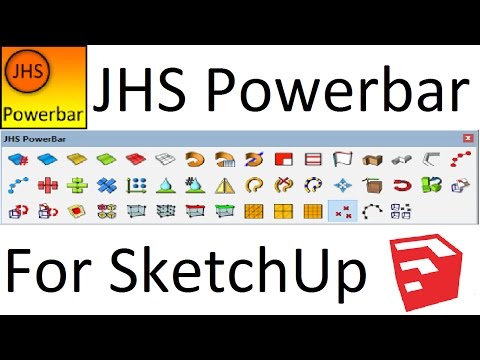
JHS PowerBar is a plugin packed with useful commands, and we strongly recommend trying it. It is one of the plugins you’ll use most in 3D project work. It offers dozens of commands, from mirroring to line thickness and from joining lines to placing components automatically.
 YouTube
With these commands you can edit your models the way you want, quickly and in batches. What’s more, JHS PowerBar is free. So it is a plugin every SketchUp user should try.
3. Curviloft: creating surfaces from contours
Curviloft lets you create surfaces from contours and gives you more flexible design freedom. It generates a surface directly from contours you build with lines. That way you save time and get clean results. The plugin has three main tools: Loft by Spline, Loft along Path and Skinning.
 YouTube
Curviloft is a free plugin by the developer Fredo6. So it won’t work unless the LibFredo6 library is installed. It is ideal for shell designs and organic surfaces in SketchUp. If you are looking for other plugins for organic modeling, see our 8 best plugins for organic design post.
4. Dibac: a SketchUp plugin for architects who draw plans
Dibac lets you create a 3D model by drawing with 2D tools. That way you take architectural drawings into 3D in a short time. You can also quickly draw elements like walls, doors, windows, cabinets and stairs.
 YouTube
Unlike the other plugins on the list, Dibac is paid. It is a tool favored by designers who want to build a model quickly from a plan.
5. Shape Bender: fit a flat object to a curve
Shape Bender is a free plugin and very useful on curved surfaces. It bends an object you drew flat along any curve you choose. For example, it is ideal for fitting flat text, a railing or an ornament onto a curved wall. It gets less efficient with high-poly objects, but it still makes life much easier.
 YouTube
Bonus: filled sections with Section Cut Face
Section Cut Face is especially useful for plan presentations. When you cut a section in SketchUp, the walls look hollow. This plugin fills the section face, so the walls appear black. That way you don’t have to fix your plans over and over when you present them. It may look like a simple feature, but it is a real lifesaver.
 YouTube
Which plugin for which job? A summary of SketchUp plugins for architects
- Architectural elements: 1001bit Tools and Dibac
- General speed and order: JHS PowerBar
- Organic and curved surfaces: Curviloft and Shape Bender
- Plan and section presentation: Section Cut Face
Always download plugins from trusted sources. SketchUp’s official extension store, Extension Warehouse, is the safest address for this.
If you want to take this topic a step further, also see our SketchUp Plugin Videos and Installing Free SketchUp Plugins: No More Failed Installs posts. You can reach all the lessons in order through our SketchUp extensions guide.
Frequently asked questions
Are these SketchUp plugins for architects free?
Most of the plugins on the list are free. Dibac is paid, and 1001bit Tools has both a free and a Pro version.
Why isn’t Curviloft working?
Usually because LibFredo6 isn’t installed. Install LibFredo6 first, then restart SketchUp.
Do too many plugins slow SketchUp down?
Yes, unneeded plugins slow down startup and drawing. So install only the ones you use often and remove the rest.