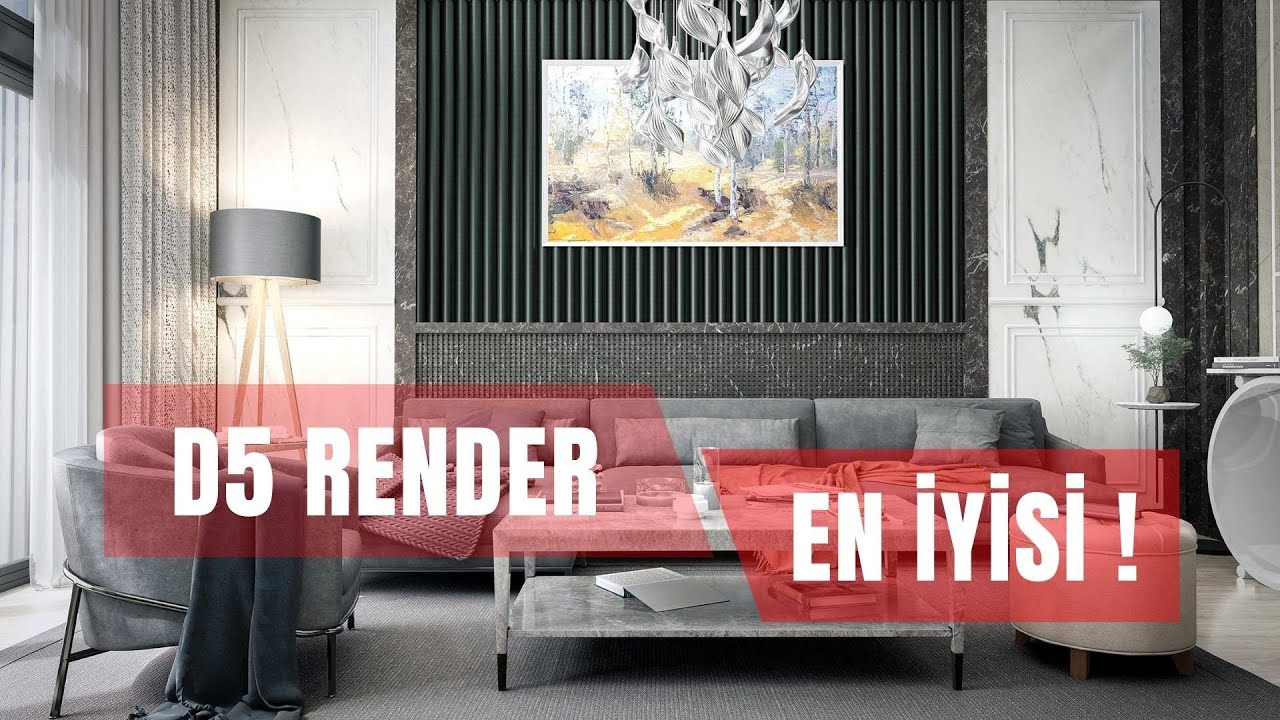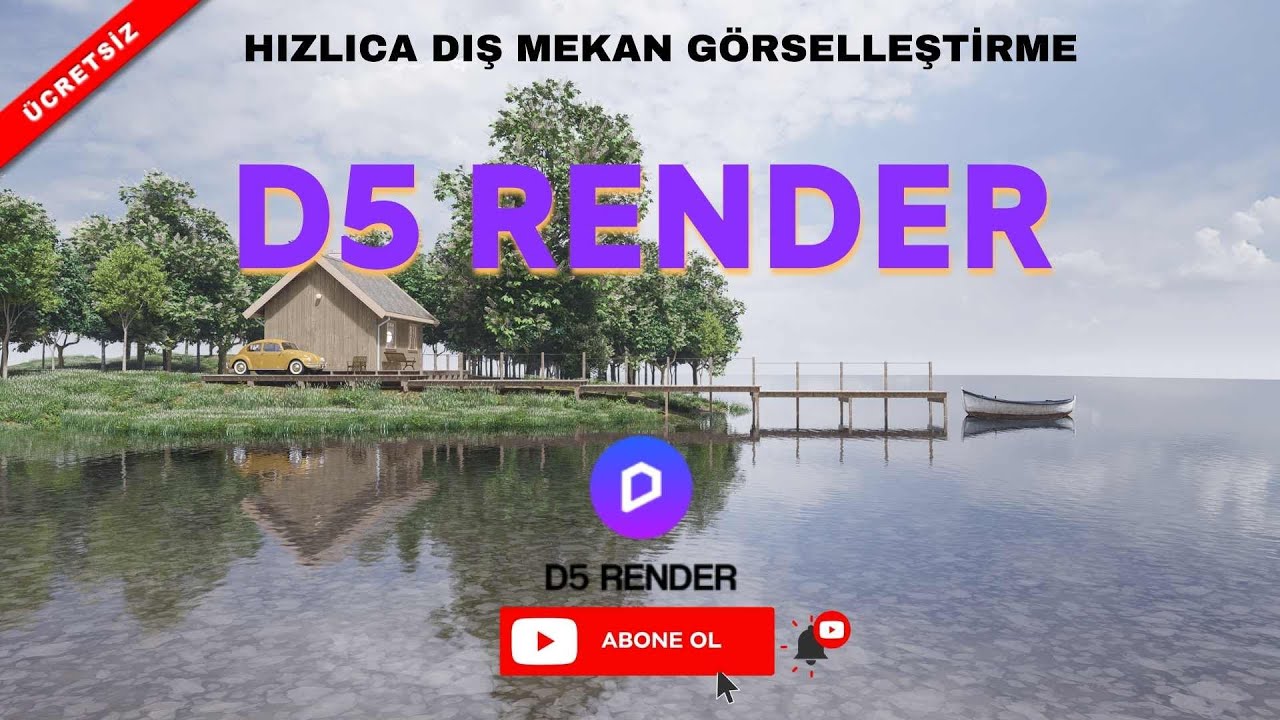
Fast, High-Quality Exterior Visualization with D5 Render

We’ll show you how to create a fast 3D visualization of an exterior with D5 Render. Enscape and the D5 Render engine lead the list of simple, high-quality render engines. Both are ideal for getting fast, high-quality results. For your exterior design and interior visualization projects, you can reach us at vraydvd@gmail.com.
 YouTube
What’s in this video?
In this lesson we quickly visualize an exterior scene with D5 Render. Our goal is to show from start to finish how we reach a high-quality result in a short time. In other words, a clean image with a simple workflow, without wrestling with complex settings. (The video is in Turkish; this guide walks through the key steps in English.)
In the video we also explain why D5 Render stands out among engines that give simple, high-quality results. The description has no chapter timestamps. So we suggest opening your own exterior model and trying the lesson as you watch.
Who is it for?
The video runs about 18 minutes. So you can see a full exterior workflow during a coffee break.
- Architects who want quick images of a building they modeled in SketchUp
- Users trying to choose a render engine and looking for fast results
- Designers preparing villa, housing and landscape presentations
- Students who need to deliver a project in a short time
Where does D5 Render’s speed come from outdoors?
D5 Render is a real-time render engine. So when you change the light, a material or the camera, you see the result on screen without waiting. That makes the trial-and-error process much shorter.
This speed is especially valuable outdoors. The sun’s position, the sky and the surroundings completely change the mood of the image. Comparing a few different times of day within minutes makes it easier to find the right shot.
What’s more, ready-made plants, people and environment assets speed up bringing the scene to life. That way you focus on the model instead of spending hours on the surroundings.
Then there are the materials. Seeing instantly how surfaces like facade cladding, glass and ground react to light makes it easier to pick the right material. For example, you can compare the reflection of glass or the texture of stone at different sun angles right away.
Before you watch
Real-time engines use the graphics card heavily. So we suggest checking in advance whether your hardware meets the program’s recommendations. Otherwise you’ll get stutters while moving around the scene.
An organized model on the SketchUp side also makes a big difference. For example, giving materials meaningful names lets you find the surface you need in the render engine right away. Cleaning out unneeded parts makes the file lighter. For the basics, take a look at the SketchUp Help Center.
Trying it in your own scene
- First bring in the model with simple materials and set up the overall light.
- Then try a few different times of day by changing the sun angle.
- Next, add trees, ground and human figures to the surroundings.
- Keep the camera close to eye level and save a few shots.
- Finally, pick the strongest shot and render it at high resolution.
This order doesn’t replace the workflow in the video. But it is a practical roadmap that makes it clear where to start in your own project.
How fast images help your presentation
Clients usually want to see an idea, not a flawless photo. So getting fast images early in the project makes decisions much quicker. For example, showing two facade materials side by side works better than a long explanation.
A fast engine also makes it easy to get several shots from the same scene. That way you build your presentation as a small set of images from different angles instead of a single image.
Related lessons
- Our review of the only free engine: get to know the program in broad strokes.
- Features of version 2.0: we review the new version.
- Which engine? Enscape and D5: a comparison of two fast engines.
- Comparing popular engines: three engines side by side.
- Our render guide: all our render content on one page.
Frequently asked questions
Does D5 Render work for interiors too?
Yes. This lesson focuses on exteriors, but you can also create interior images with D5 Render.
Do I need prior render knowledge to follow this lesson?
No. Basic SketchUp knowledge is enough, because the lesson follows a simple workflow.
Enscape or D5 Render?
Both are good options for fast, high-quality results. To find out which suits you, we suggest trying the same small scene in both engines. Our comparison video in the related lessons section also makes the decision easier.
Is an image from a fast engine good enough for a presentation?
For most projects, yes. Still, for work where the finest detail matters, we suggest spending a bit more time on light and material settings.